Add a payment method to your plant
Add or replace a payment method through your online account.
Instructions
Open your account page
Press the button below. If you are not signed in, first sign in with BankID. You will then be taken to your account page.Select your plant
Your plants are listed on the account page. Select the plant that needs the payment method, then check that its name and address are correct.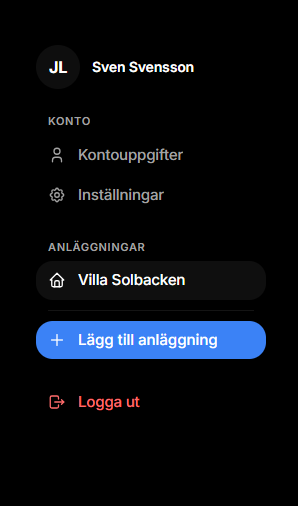
Press Prenumerera
Find the large Prenumerera (Subscribe) button and press it.If the plant already has a subscription, the button is called Hantera betalningar (Manage payments) instead. Press it to add or replace a card.
I cannot see the Prenumerera box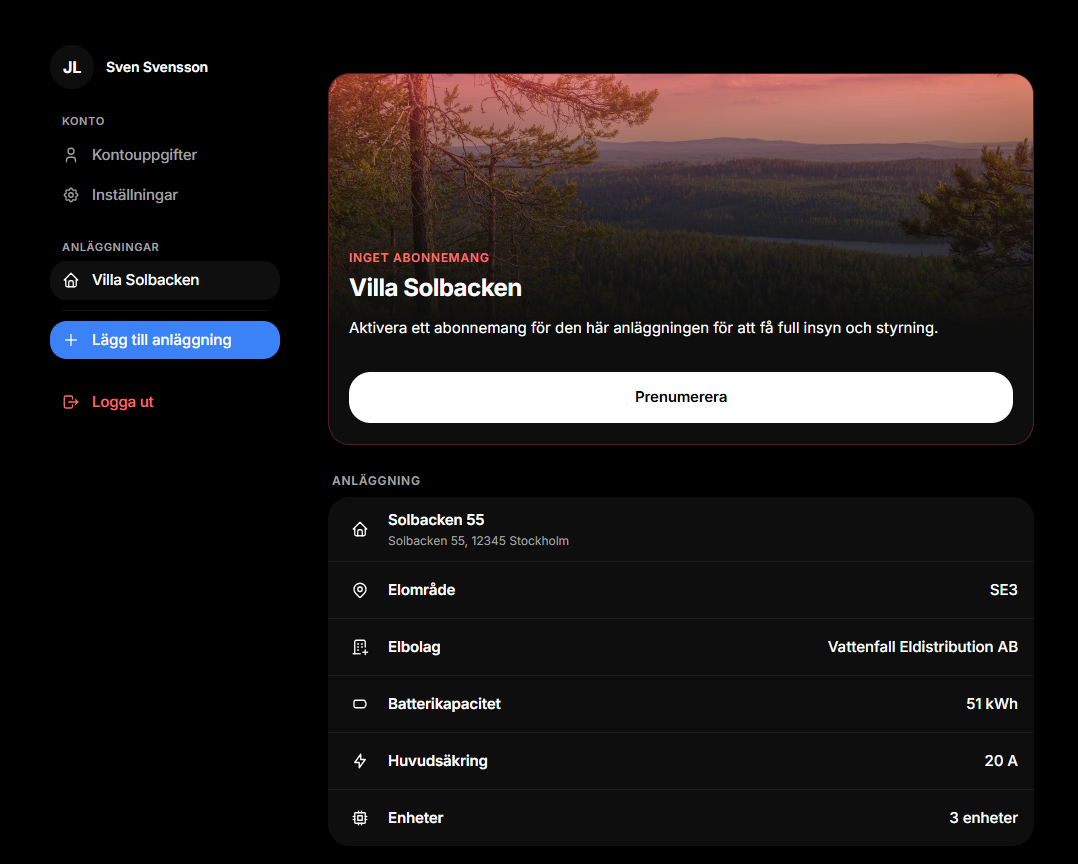
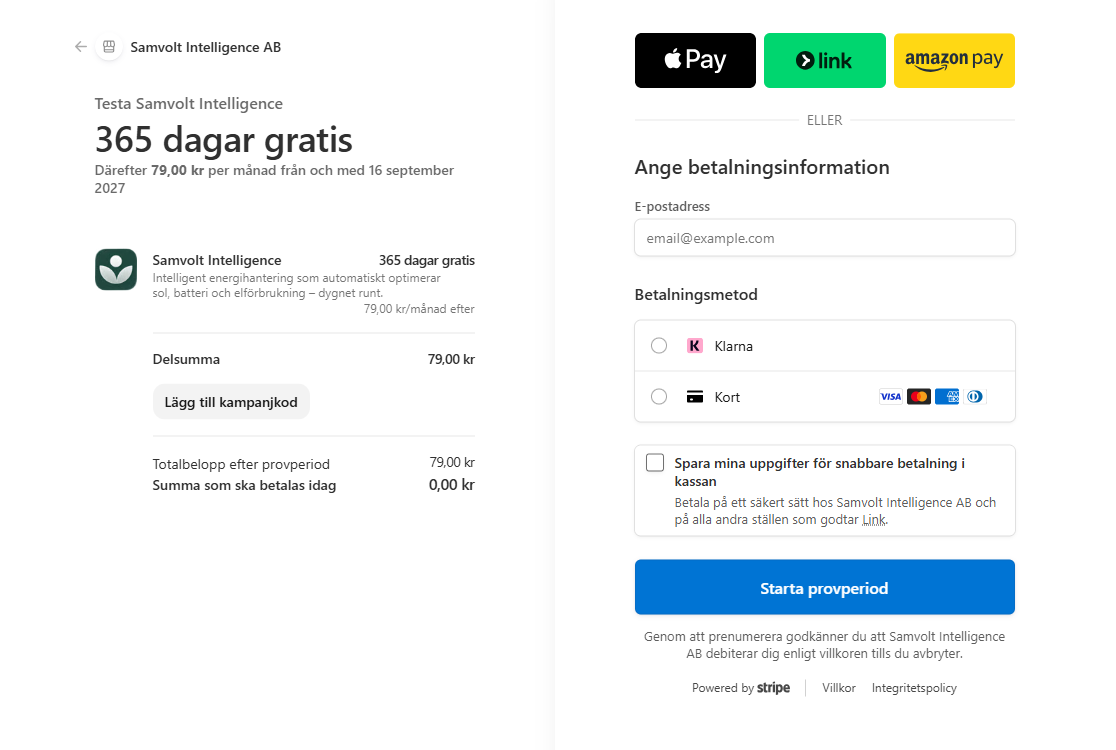
Choose a payment method
A payment window opens. You can choose card or another available payment method, such as Klarna, Apple Pay, Link or Amazon Pay.If you choose card, enter the card number, expiry date and CVC (the three digits on the back of the card). Approve the payment with your bank if asked.
Done
When the payment is approved, the message Betalningen lyckades (Payment successful) appears. You can close the page and open the Samvolt Intelligence app again.


Extra help
If you cannot see the Prenumerera box
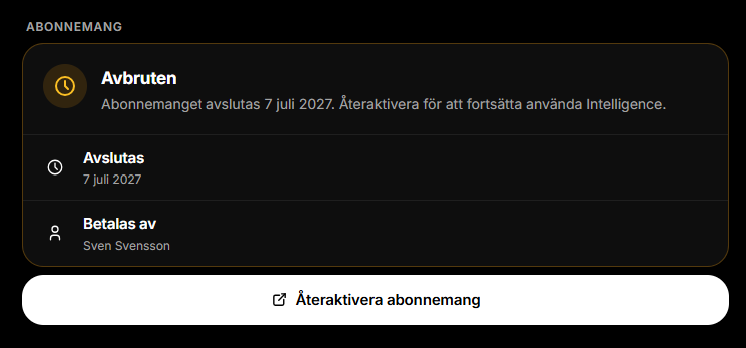
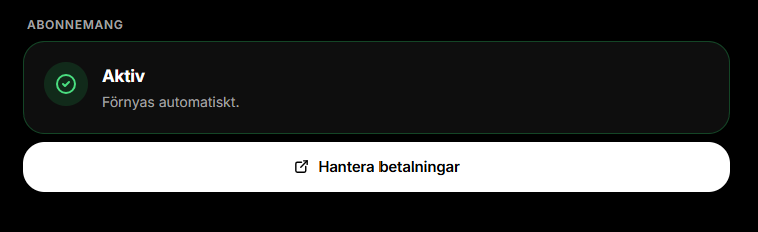
Scroll to the bottom of the plant page and find Abonnemang (Subscription). If the subscription is marked Avbruten (Cancelled), press Återaktivera abonnemang (Reactivate subscription).
Then continue to step 4 and choose a payment method.
If the subscription is already active
If the subscription is marked Aktiv (Active), everything is ready. You can return to the Samvolt Intelligence app.
Does the app show a payment message?
If the app shows Lägg till ett betalkort (Add a payment card) or Aktivera Intelligence (Activate Intelligence), press that button. It opens the same account page, so continue from step 2.
If something does not work
- If the card is declined, check with your bank that it allows online purchases and recurring payments. This can often be changed in your banking app.
- Only enter card numbers and CVC codes in the payment window opened through Samvolt Intelligence. Only enter your BankID code in the BankID app. Never send these details by email, phone or text message.
Need help? Email [email protected]. Do not include card details in your email.